From group chat to family calendar
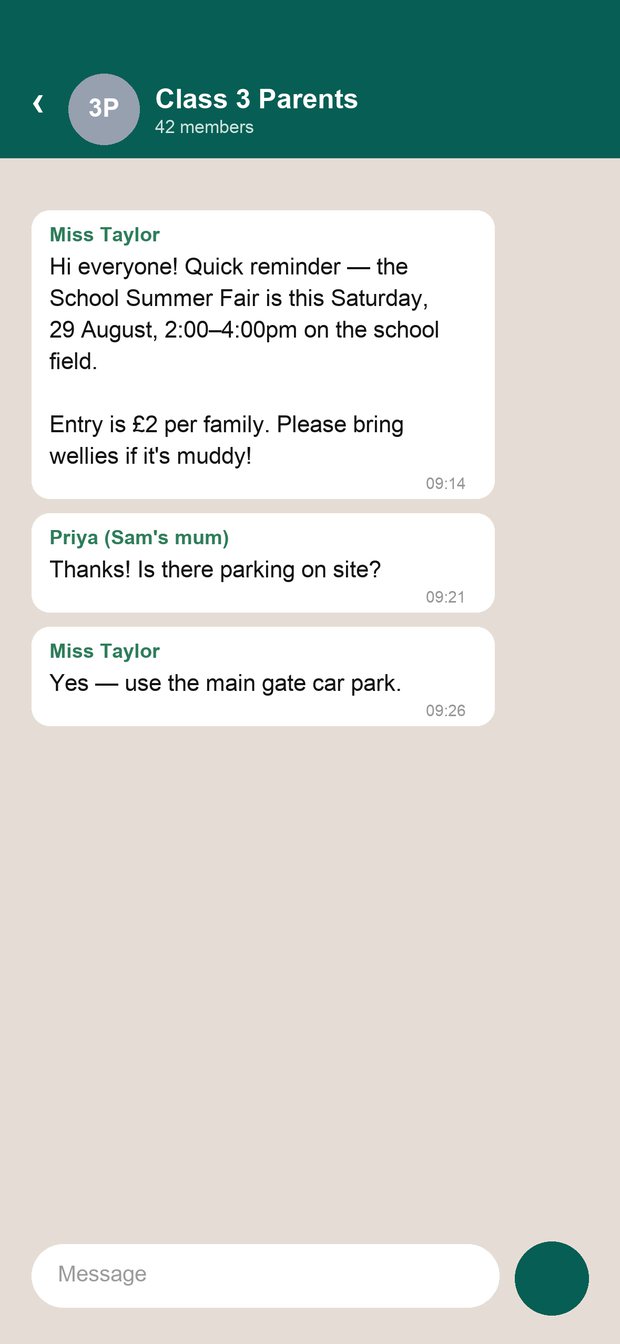
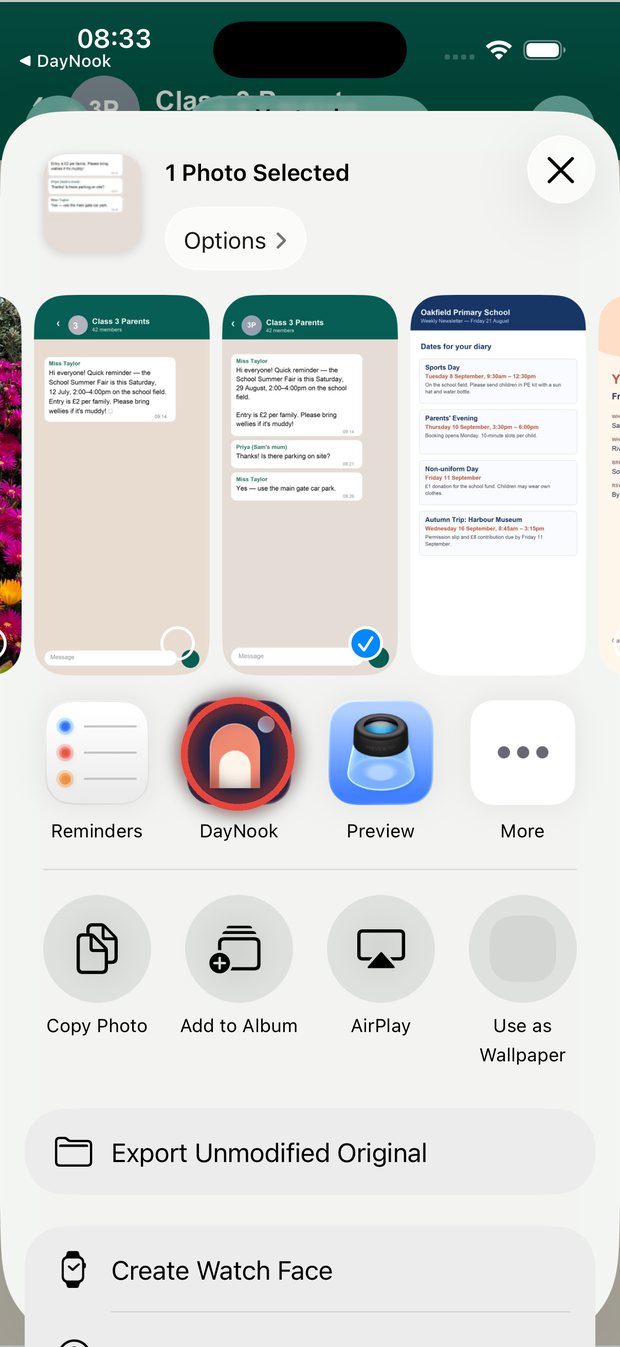
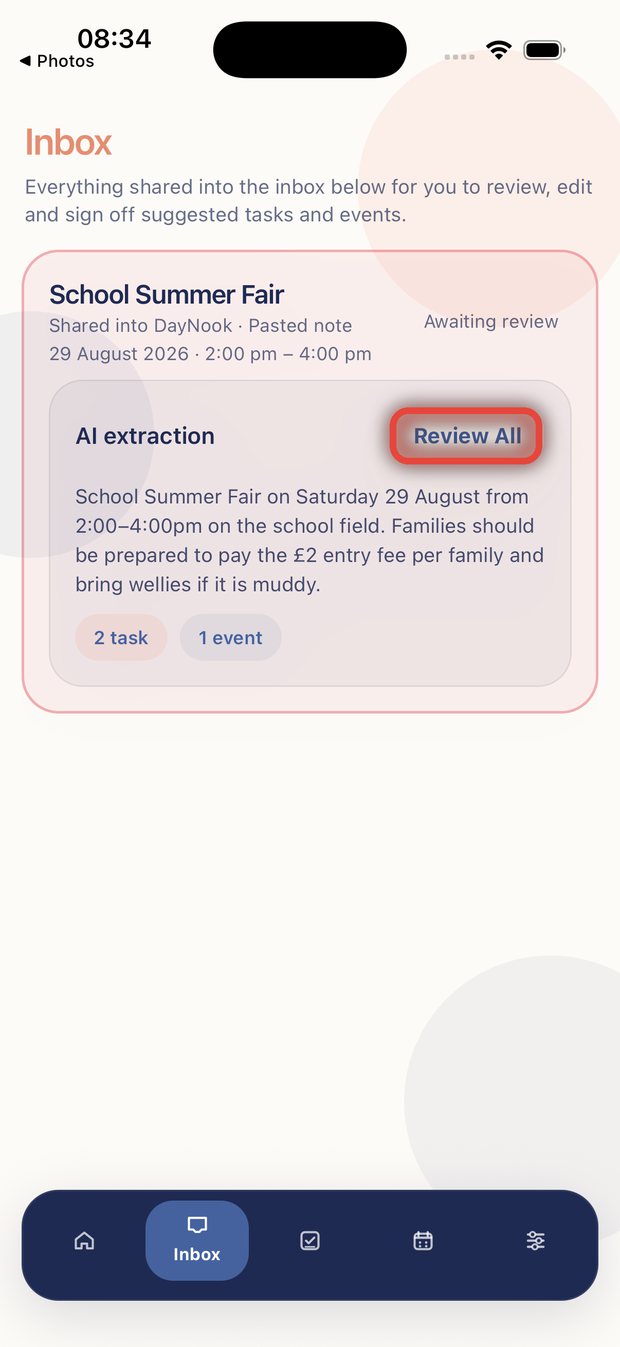
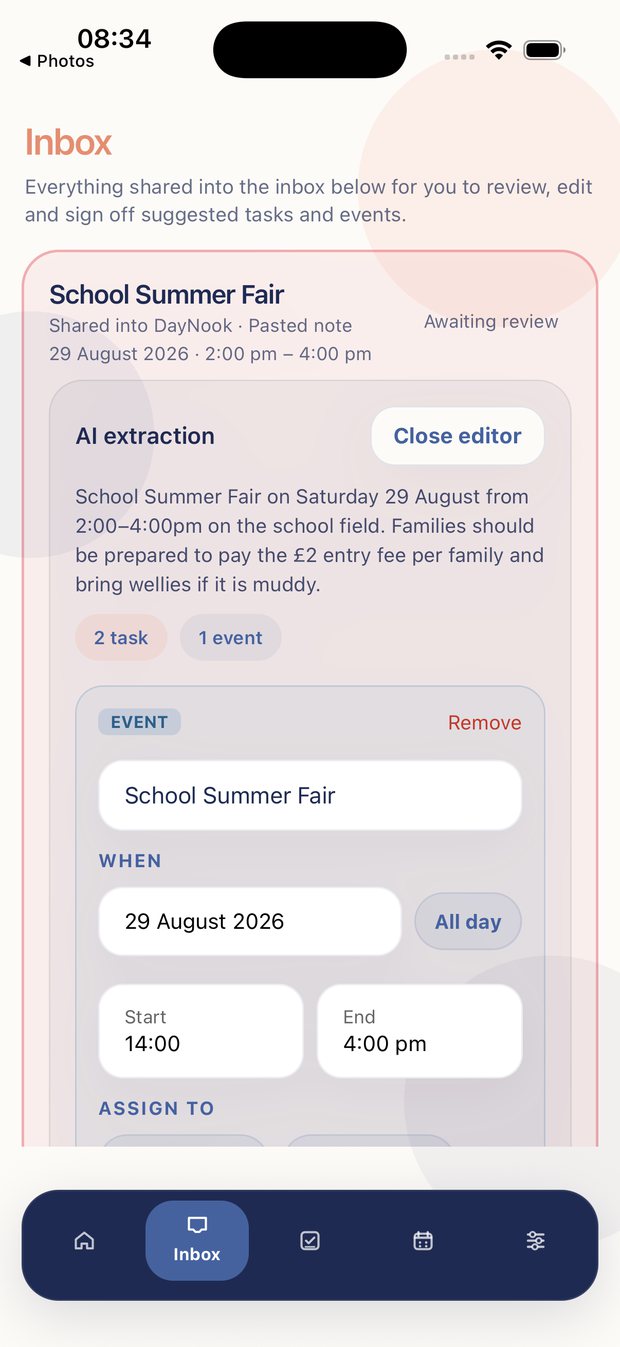
Here is the whole flow, screen by screen. Nothing is added to your planner until you approve it.
Your family dashboard at a glance
Your family can be set up in Settings and you can send an invite code to another caregiver so they can join the family.
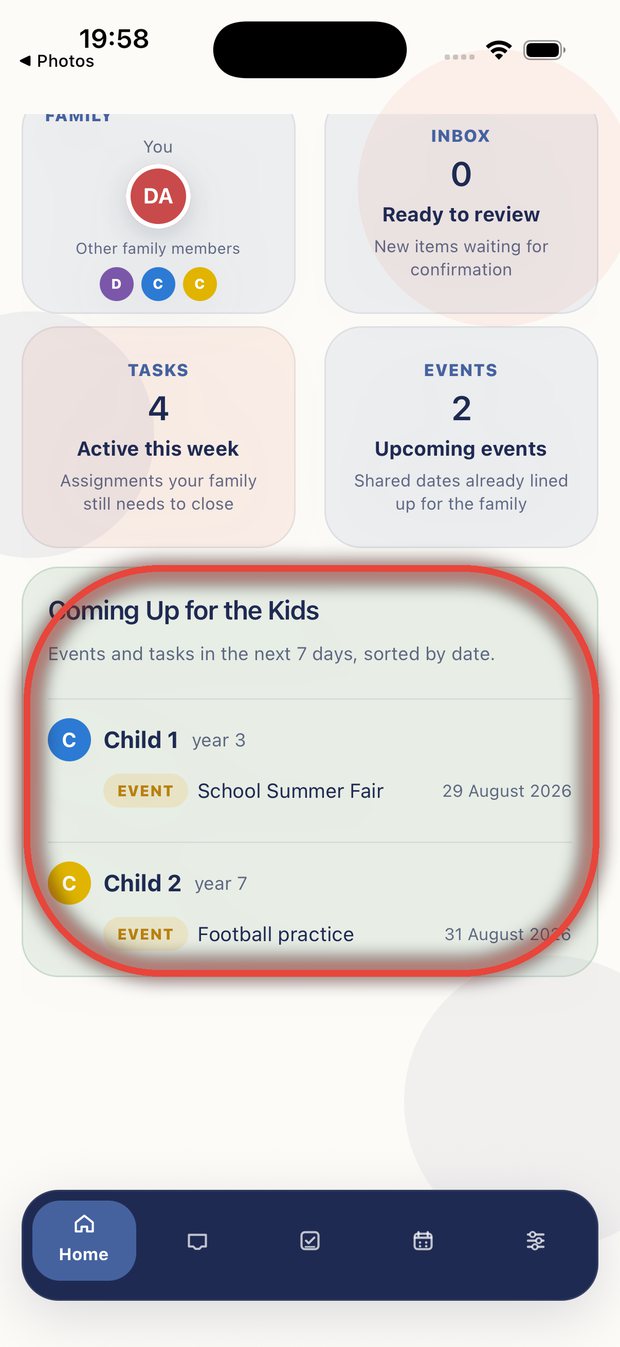
The Home screen gives you an oversight of what tasks need attention and what events are coming up.
- Inbox — shows how many new items are waiting for your review. Tap the box to jump straight to the Inbox.
- Tasks — the number of open tasks across your whole family planner.
- Events — upcoming events in the next 30 days.
Below the overview boxes you will see upcoming events and tasks for the week for each child, so you always know what is on without opening the Planner.
Bring in school emails, messages, and letters
The Inbox is where everything starts. You can send content to DayNook from wherever it lives — no copying and pasting required.
-
Forward an emailForward any school or club email to your family's DayNook address (found in the app under Settings → Email Forwarding). DayNook reads it and uses AI to pull out tasks and events.
-
Share from another appTap the share icon in any app — WhatsApp, Notes, Safari, your camera roll — and choose DayNook. Screenshots of letters, group chat messages, web pages, photos, and PDFs all work. You can also select specific text in a message and share just that, or forward an entire WhatsApp or iMessage conversation directly into DayNook.
-
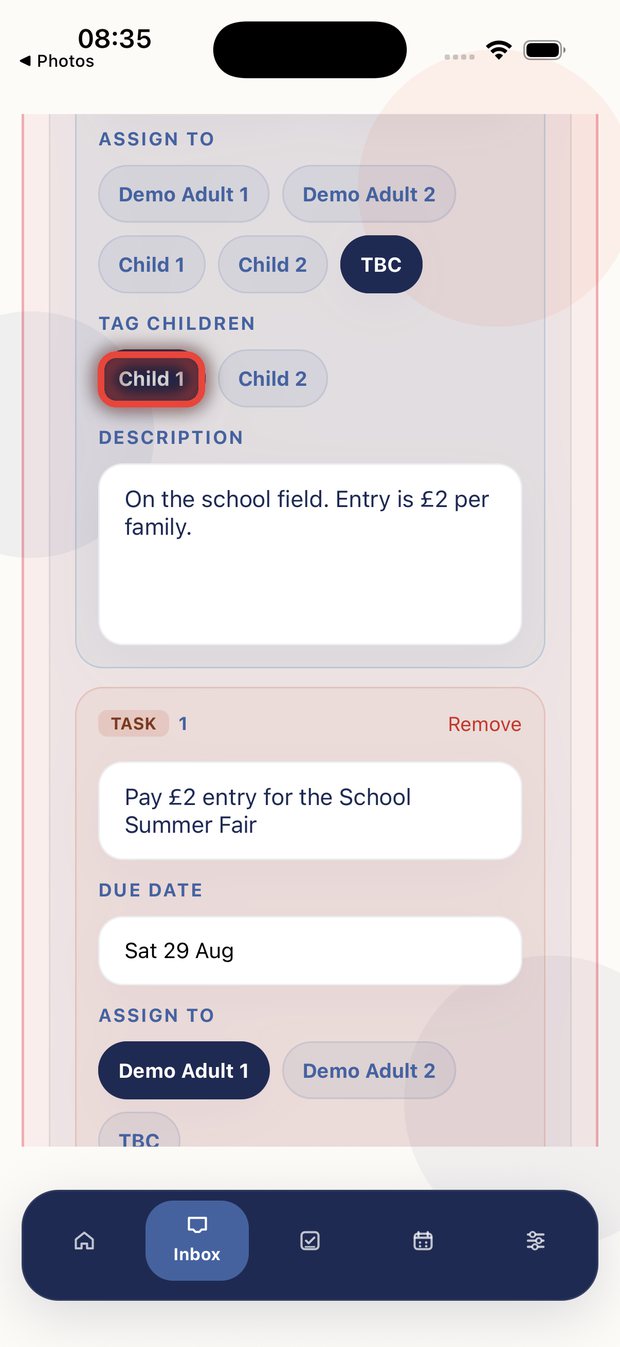
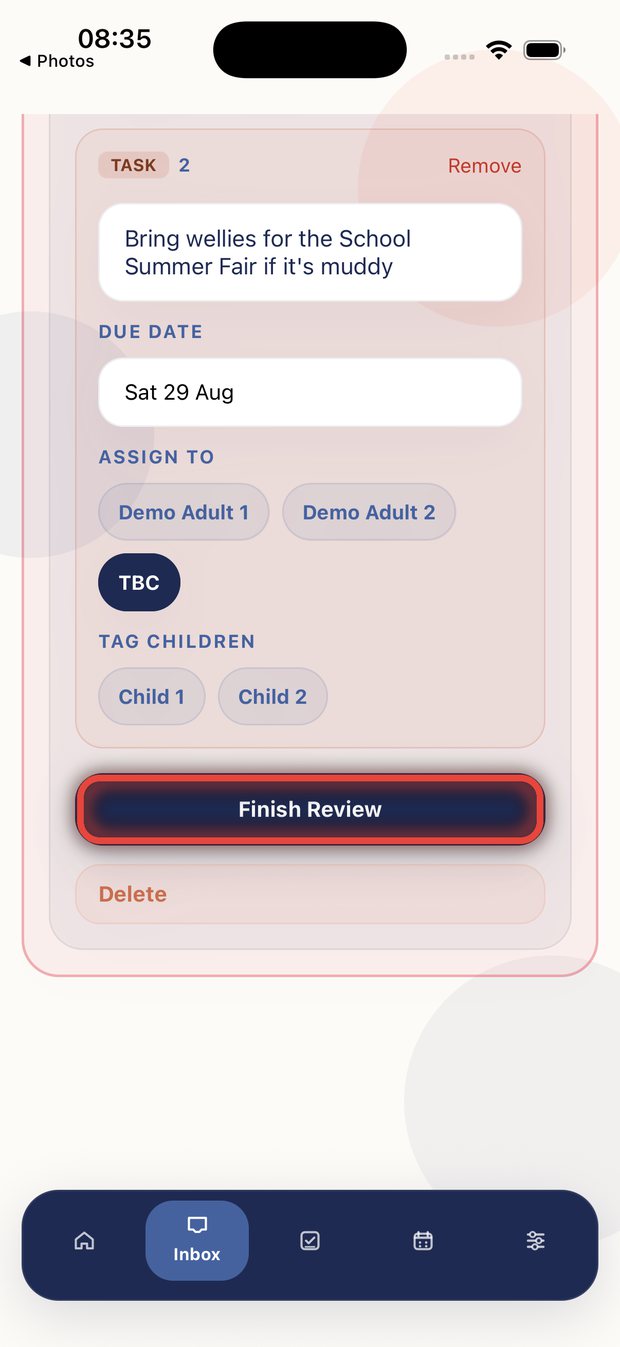
Review and approveDayNook shows you what was extracted before anything is saved. You confirm, edit, or reject each suggestion — nothing goes into your Planner without you approving it first.
DayNook extraction works best with clear text — typed messages and emails give better results than blurry photos. If a date or task is not extracted correctly, you can edit the suggestion before approving it.
Your events and tasks in one view
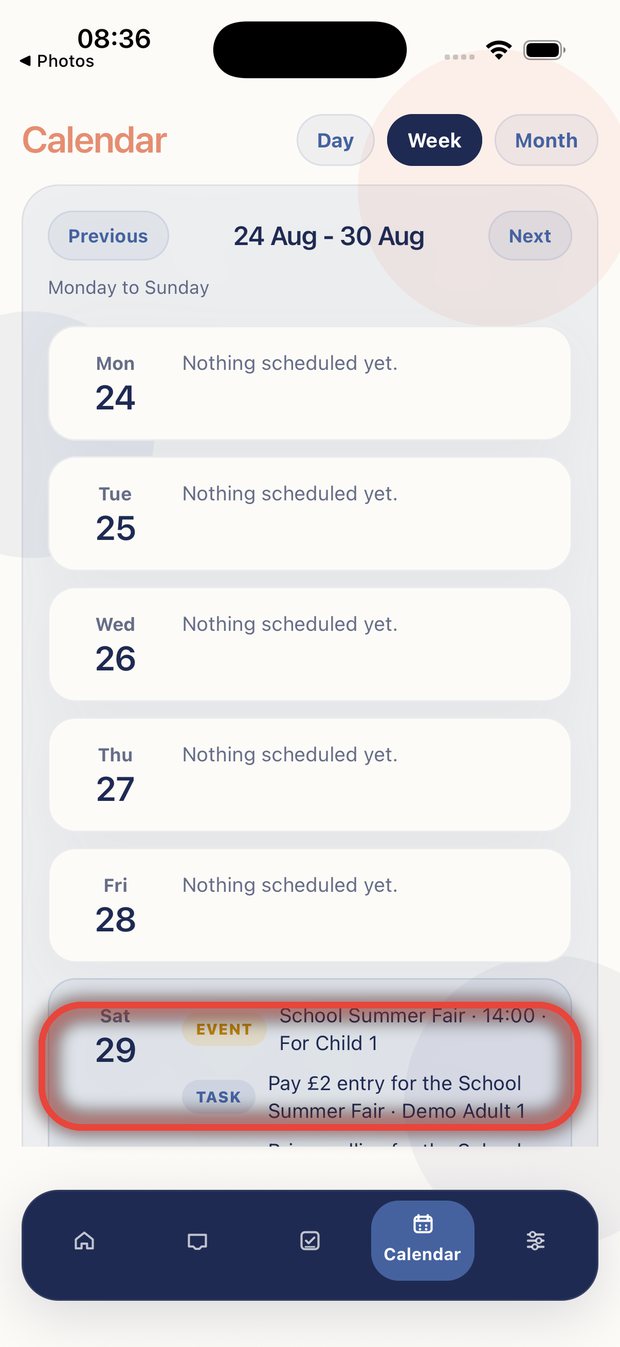
The Planner shows everything coming up — approved events from the Inbox, manually added events, and tasks — sorted by date so the next upcoming event is always at the top.
Tap any event or task to expand it and make changes: update the date, set a start and end time, change who it is assigned to, or add a description.
Tasks without an event attached appear below your upcoming events. Mark them as done when complete and they will move out of view.
Swipe to act on tasks quickly:
Reminders and family activity alerts
DayNook sends two kinds of notifications: reminders for upcoming tasks and events, and activity alerts when other family members make changes.
DayNook has five notification types, all switchable individually in Settings → Notifications:
- Task reminders — an iPhone alert sent before a task's due date, so nothing slips past you.
- Event reminders — a banner or lock screen alert before a family event starts.
- Weekly summary — a Sunday evening look-ahead sent to your lock screen, showing what's coming up in the week ahead.
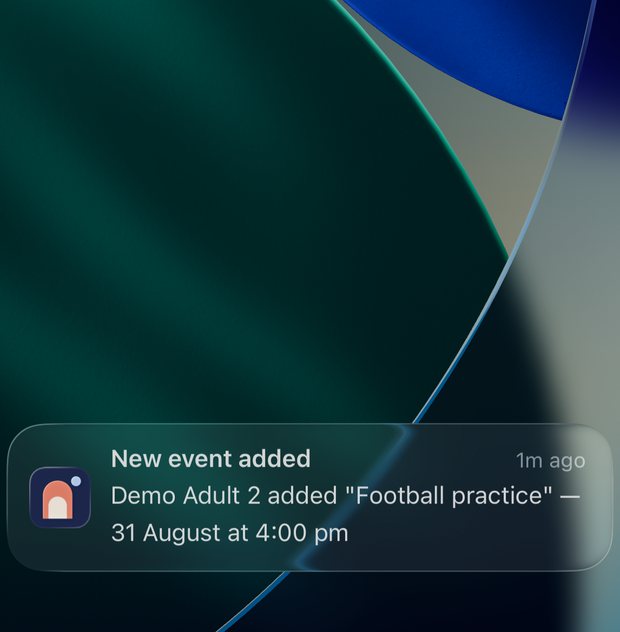
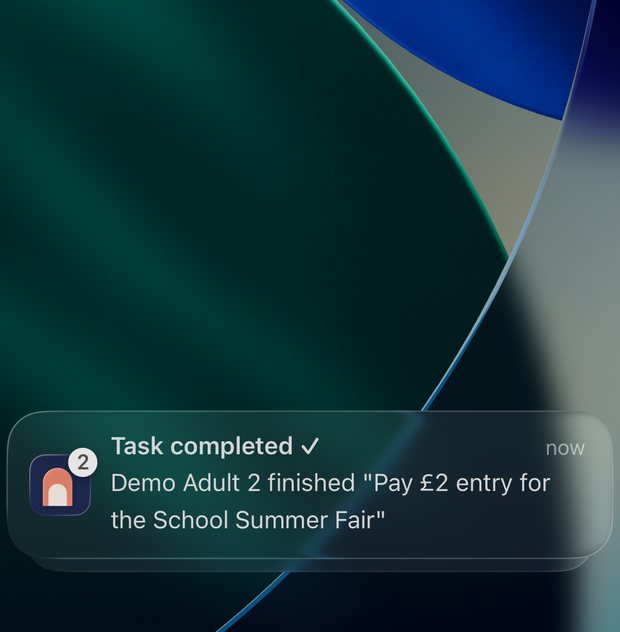
- Family activity — Appears on the bell icon inside the app on the home screen. Triggered when another family member completes a task, assigns something, or adds an event/task. Tap the bell to see the activity feed and clear individual items.
- Inbox alerts — a banner sent when an import has been processed and is ready to review, so you know to open the Inbox even if the app is not on screen.
To clear family activity notifications:
- Tap the bell icon on the Home screen to open the activity panel
- Tap the ✕ next to any individual notification to dismiss it
- Use Acknowledge all at the top of the panel to dismiss everything at once
To adjust reminder settings:
- Open the app and go to Settings (bottom of the screen)
- Tap Notifications to turn task reminders, event reminders, and the weekly summary on or off
Sync events to your calendar app
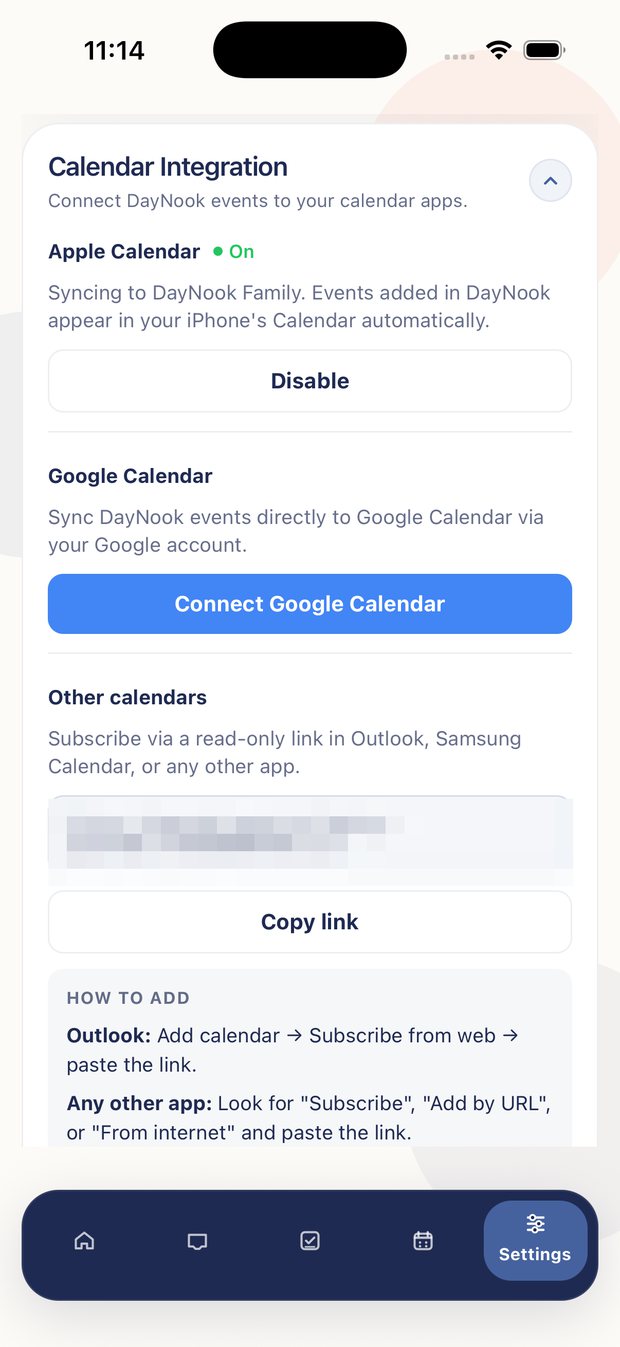
DayNook can push your family events into the calendar app you already use, so everything shows up in one place. Go to Settings → Calendar Integration to connect.
-
Apple CalendarTap Connect Apple Calendar. DayNook creates a dedicated DayNook Family calendar on your iPhone, and approved events appear there automatically. You can see them alongside your personal calendar events without switching apps.
-
Google CalendarTap Connect Google Calendar and sign in with your Google account. Because DayNook is a new app and has not yet completed Google's full verification process, Google shows a warning screen saying the app is unverified. This is normal — tap Advanced at the bottom left of that screen, then tap Go to DayNook (unsafe) to continue. DayNook only requests permission to write events to your calendar; it does not access your email or any other Google data.
-
Other calendars (Outlook, Samsung, etc.)Tap Other calendars to see your personal ICS subscription link. Copy the link and paste it into the "subscribe to calendar" option in Outlook, Samsung Calendar, or any calendar app that supports ICS feeds. Events will appear as a read-only calendar that stays in sync.
Keep everyone on the same page
DayNook is built for the whole household. Once your family space is set up, everyone with access can see the same Planner and tasks — so the mental load is not stuck with one person.
Events and tasks can be assigned to specific family members, and you can add children as subjects of events (a school trip, a sports match) so it is always clear who something applies to. The assigned member and any tagged children are shown directly on the task or event card in the Planner.